New drum sounds - documentation?

Hey!

So im at https://drum.dato.mu/ and my drum is connected. What now? What happens when I upload a new sound? Will the old one get overwritten? If so: how can I get the original Sample-Pack back? And for new sounds: what format/size should they be? Whats the max size of samples on the drum? Would love some more documentation :slight_smile:

Great little device tho!

1 Like

Hi Perelin,

Our first priority is getting the DRUMs to our Kickstarter backers, so functionality is a bit sparse at the moment.

To answer your questions:

  • You can always press the ‘reset to factory sound’ button to return that sound to factory default
  • Audio is converted and trimmed to 1 second, so you should be able to pick pretty much any sound

If you run into any bugs please let me know

1 Like

Great, thx! Will the application/source/library be made available publicly at some point? To use it offline, or in case the WebApp stops being available.

Yes, the source is available here: GitHub - datomusic/drum-webapp

There is no server-side stuff going on so it works offline already.

2 Likes

Wow! That comes as a welcome surprise. Well done! Thx!

1 Like

Hello. New to the Dato Drum and have enjoyed it thus far but we’re ready to add new samples.

Very confused as to how to do this though.

Have followed this URL and plugged in…device is powered on and flashing as if it were plugged in to the power…but what now?

I don’t have a background in music production or development or anuthing like that so to be honest. So the github page below is too complex when it speaks of cloning this or that… It implies there is an app to use - but is there?

Is there a layman’s guide to the process?

Thanks

Hi @billcode ,

You’re right in that the github code is too complex: that is the actual behind the scenes code that makes the web interface work.

The page you are looking for is here: drum.dato.mu. Please be sure to open it in a browser that supports MIDI, so Safari won’t work.

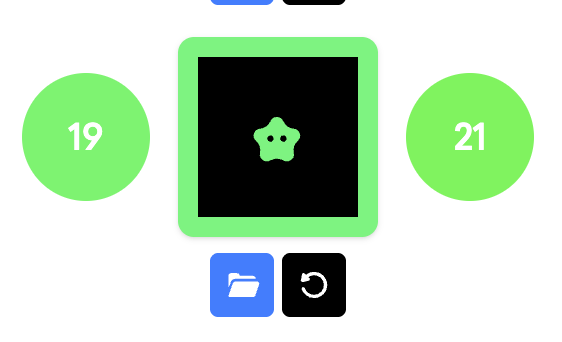
When you connect the DRUM you will be greeted with a field with 32 buttons that represent the 32 samples.

  1. Select the sample you want to change on the DRUM or on screen
  2. Use the browse button to upload a new sound for that sample slot.
  3. If you want to go back to the factory sound for that slot, press the reset button.

We’re working on new functionality and documentation for this tool so things might change in the near future, but this should get you up and running with swapping out samples.

Wonderful! Dank u well